
6.1. Multimeter#
The Multimeter widget shows the present operating state of one instrument: current, voltage, power, charge and energy. It is the main widget of the Multimeter view.
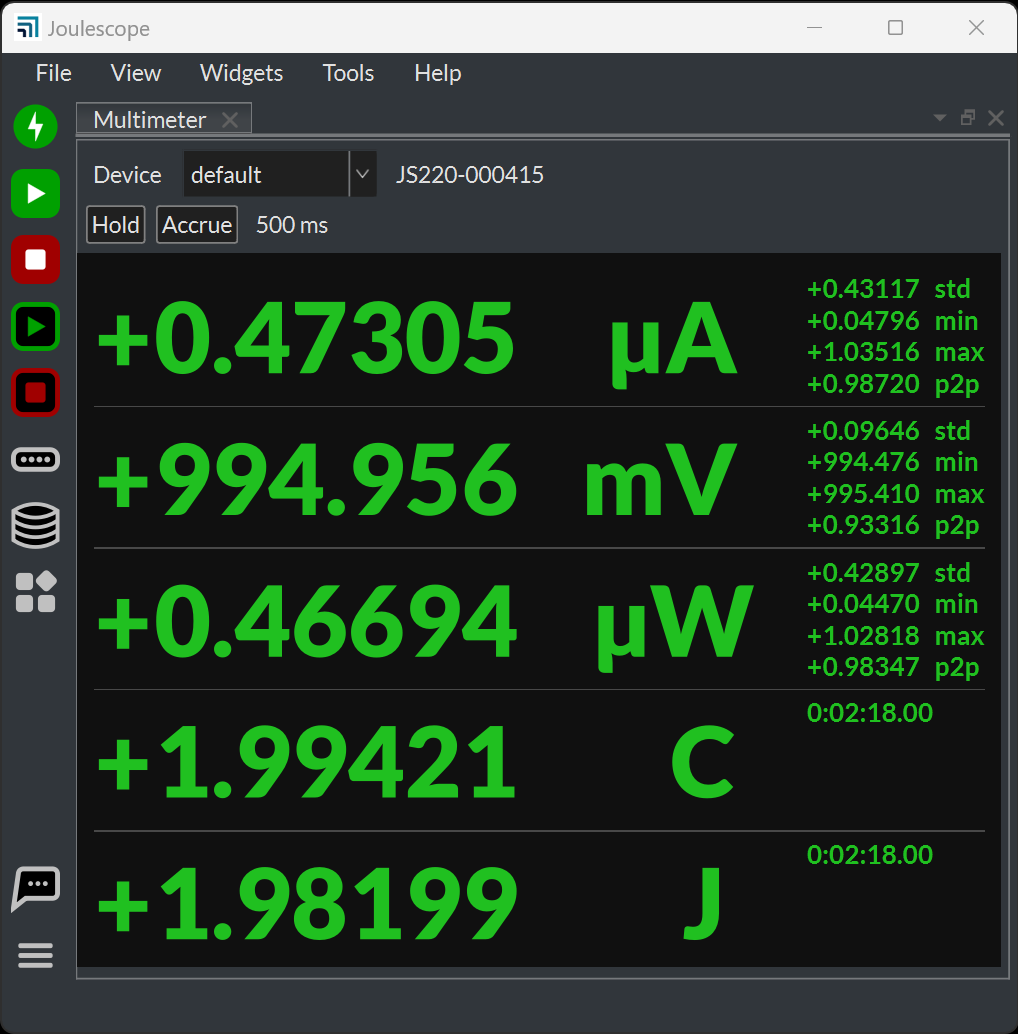
6.1.1. Display#
From top to bottom, the widget shows:
Device: the instrument to display. default follows the default device. When default is selected, the name of the device it resolves to appears next to the selection. “Not present” means that the selected device is not connected.
Hold and Accrue buttons, with the accrue duration.
One row for each quantity: current (A), voltage (V), power (W), charge and energy.
For current, voltage and power, the large value is the mean over the statistics window. The small fields to the right show:
Field |
Description |
|---|---|
std |
The standard deviation. |
min |
The minimum value. |
max |
The maximum value. |
p2p |
The peak-to-peak value, max - min. |
Charge and energy show the total since the instrument started accumulating, with the duration as their only field. Durations longer than 60 seconds display as hours, minutes and seconds.
Each value uses an SI prefix chosen automatically from the largest of its values, so that the mean and its fields share one prefix. See Meet the Joulescope UI for the prefixes.
6.1.2. Update rate#
The widget updates once per statistics window of the instrument. The instrument computes the statistics over every full-rate sample, so a short pulse between updates still contributes to the mean, min and max. Set the rate with the instrument’s Statistics frequency in the Device Control widget, from 1 Hz to 100 Hz. The default is 2 Hz, a half-second window.
6.1.3. Hold and Accrue#
Hold freezes the display. The instrument continues to measure, and charge and energy continue to accumulate. Click Hold again to resume. The Statistics display button on the Side Bar holds every widget that displays statistics at once. While it is active, the Hold button is disabled.
Accrue combines every new statistics window with the previous ones, instead of showing only the latest window. The mean becomes the average since you pressed Accrue, min and max become the lowest and highest values since then, and the standard deviation combines all windows. The header shows the accrue duration and the time accruing started. Click Accrue again to return to the latest window. Changing the device restarts accruing. Accrue does not affect charge and energy, which always accumulate.
6.1.5. Settings#
Setting |
Default |
Description |
|---|---|---|
Show the device selection header. |
on |
Show the Device selection. |
Show the accrue header. |
on |
Show the Hold and Accrue buttons. |
Show the statistics fields at the right. |
on |
Show std, min, max and p2p. |
Show a leading + or - sign. |
on |
A minus sign always shows. |
Show the statistics section title for each signal. |
off |
Show the device and quantity above each row. |
The units to display. |
default |
Show charge and energy in C and J (SI), or in Ah and Wh (Xh). default uses the application setting. |
The precision to display in digits. |
6 |
3 to 6 digits. |
Divide the quantity by this value. |
empty |
Divide every value by a number, optionally with units, such as
|
6.1.6. Value and Accumulator widgets#
The Value widget shows one quantity from the Multimeter as a single large value, which is useful in a crowded view. Select the quantity with its The signal to display. setting. It has the same settings as the Multimeter, but hides the device selection, the accrue header and the fields by default.
The Accumulator widget shows the charge or energy of one instrument, and its duration, as one line of text. Right-click to switch between charge and energy and between C and J or Ah and Wh units.