
3. Quick start#
Install the Joulescope User Interface (UI) on your computer, as described in Installing the Joulescope UI.
Start the Joulescope UI.

Connect the Joulescope USB port to the host computer using the provided USB cable. The UI automatically detects the connected Joulescope and starts displaying statistics data.
The Joulescope JS320 front panel has the Voltage and Current binding posts. The JS220 and JS220+ have the same connections.
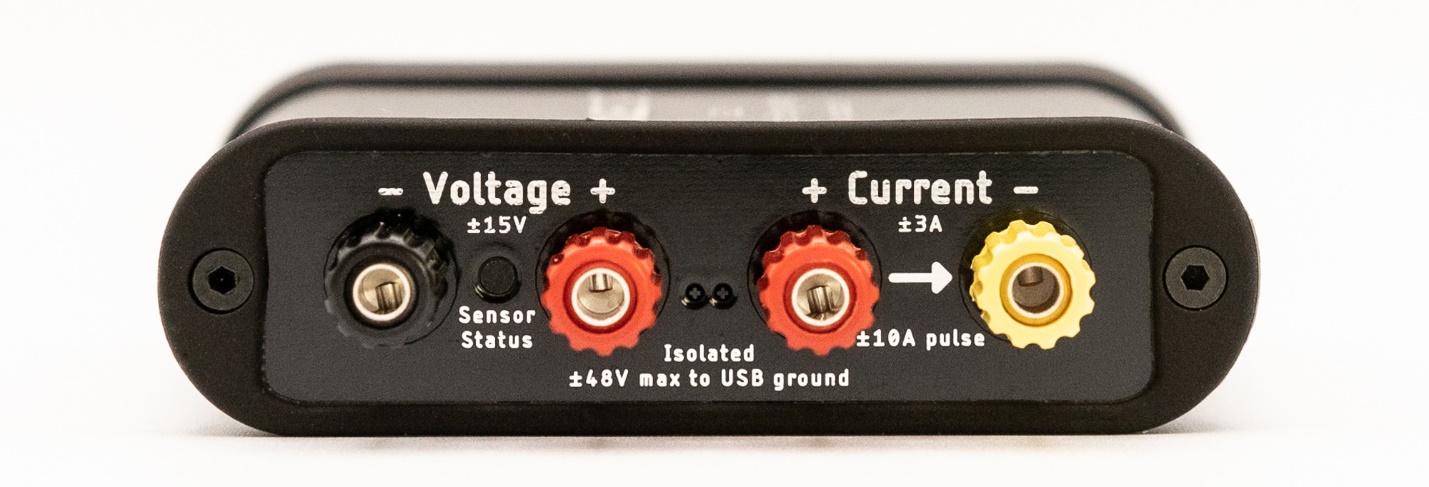
To measure the current and charge, connect the Joulescope Current port inline between the positive output from your power source and your target device under test. The maximum voltage between any port Current +, Current -, Voltage +, and Voltage - should never exceed ±15V. All sensor ports are electrically isolated from USB, but the voltage between any port and USB ground should never exceed ±48V.
To also measure voltage, power, and energy, connect the Joulescope Voltage ports across your power source’s positive and negative connections. Alternatively, you can connect the Voltage port across your target device’s positive and negative connections.
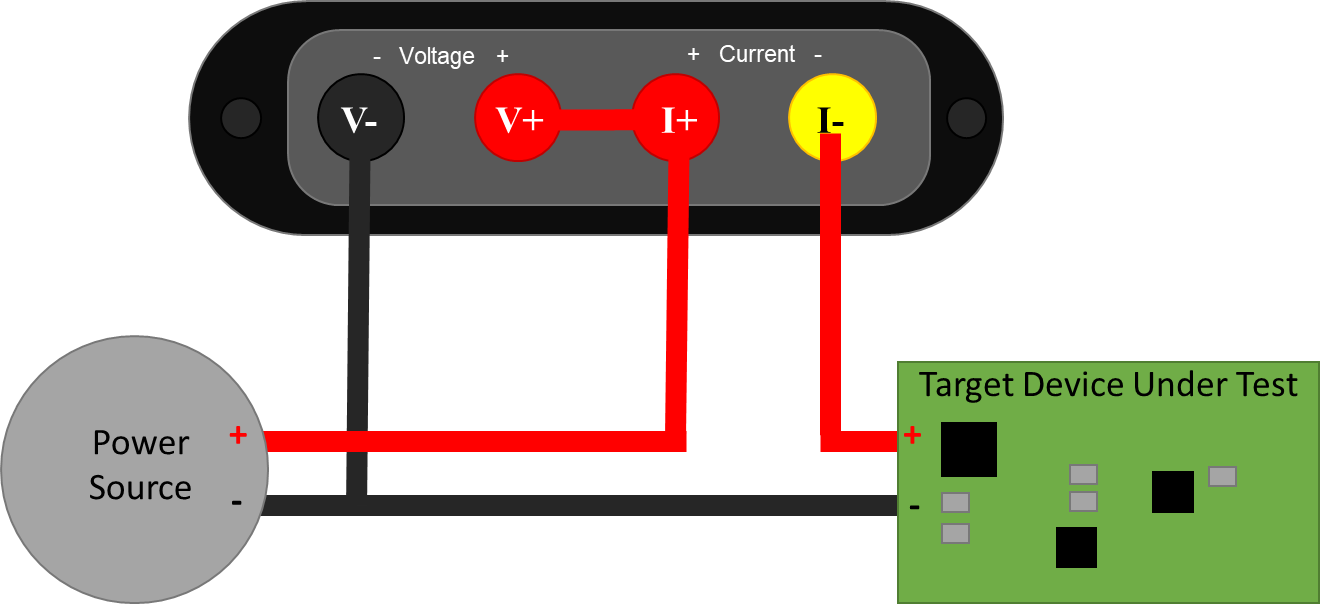
The Joulescope can be used in a variety of measurement configurations. For more common connection scenarios, see How to Connect Your Joulescope.
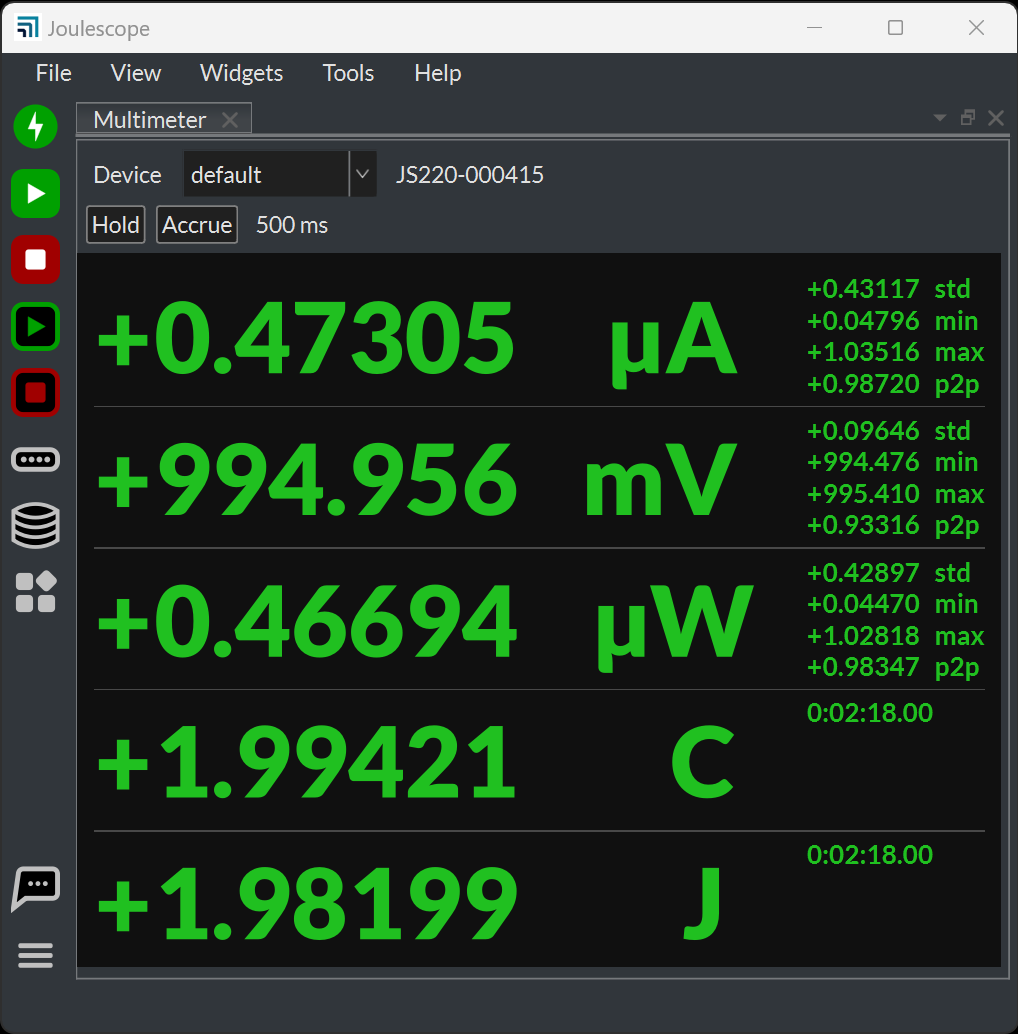
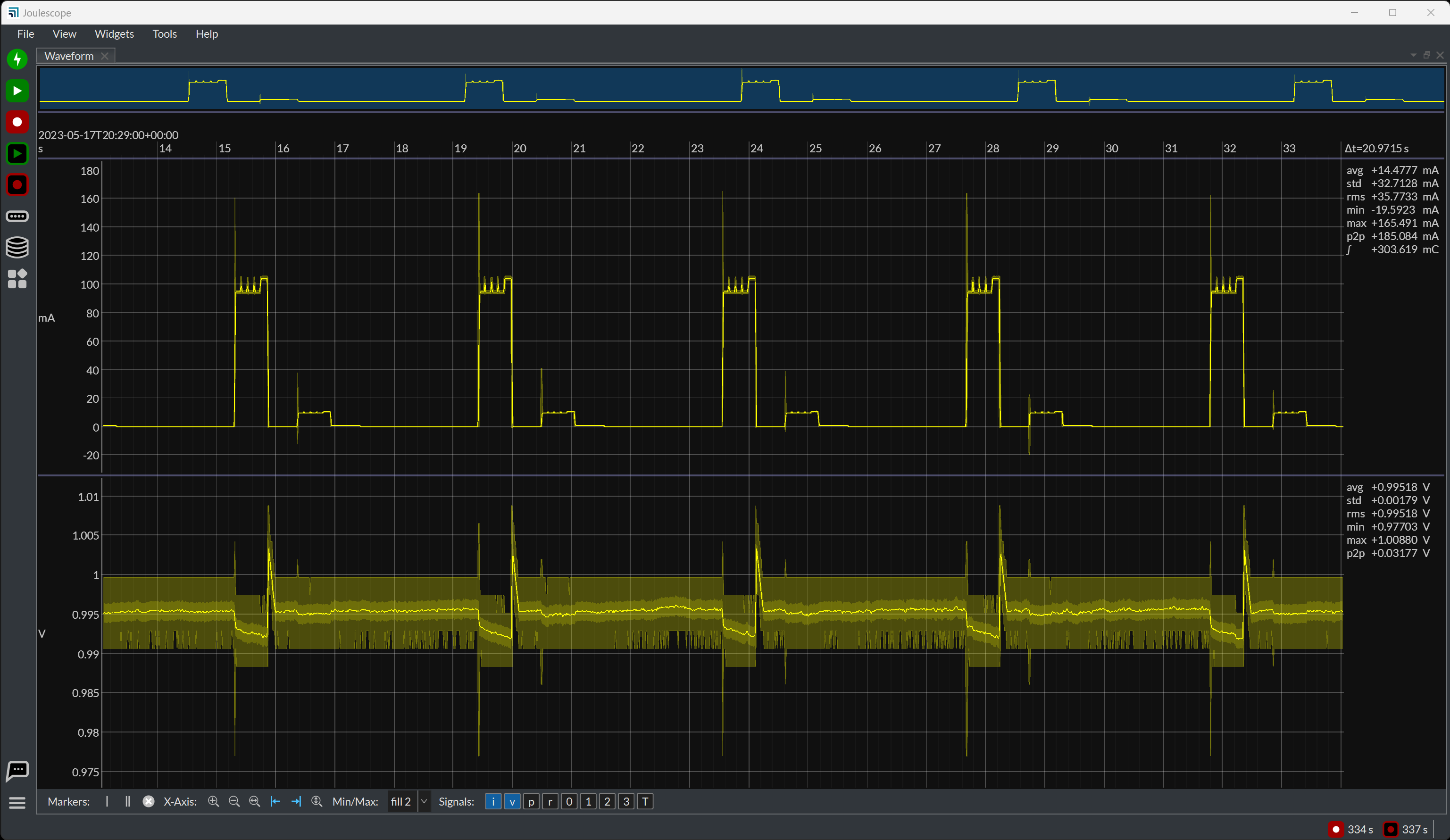
Operate your device under test. The Multimeter view shows current, voltage, power, charge, and energy. When you want to see waveforms over time, use the Oscilloscope view. Select View → Oscilloscope.
Have questions about a feature? In many cases, you can hover the mouse over an area of interest to see a Tooltip. Right-click (control-click on macOS) often brings up a context-sensitive menu.
For more information on the Joulescope UI, see the Joulescope UI User’s Guide.