
6. Graphics configuration#
The Joulescope UI will use the default graphics configuration. On macOS and Linux, this works seamlessly.
Unfortunately, Windows has a known issue with integrated Intel graphics that can cause application crashes. If your computer only has integrated Intel graphics, we recommend that you update your Intel graphics driver to the latest. If you still see crashes, you can try using the software OpenGL renderer. The UI will prompt you to make the switch, which only takes effect after you close and reopen the application. You can later configure the OpenGL renderer by selecting Widgets → Settings → Common → opengl.
Even Windows computers with discrete graphics cards sometimes select Intel graphics depending upon the power settings. In this case, you can manually configure the Joulescope UI to use the high-performance discrete graphics card. Open Windows Settings. Select System → Display → Graphics. Select the joulescope.exe executable.
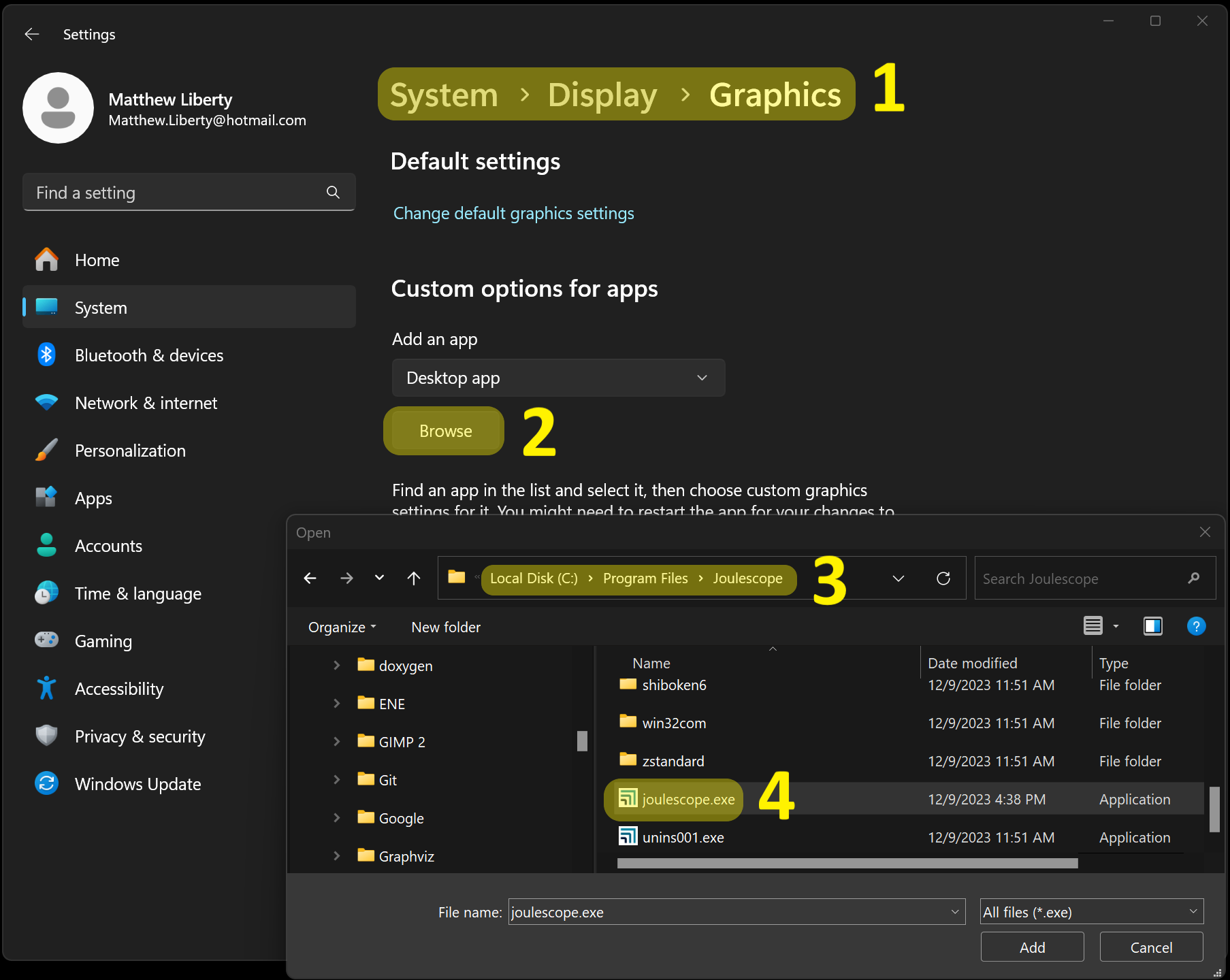
This will add the Joulescope UI to the list. Select Joulescope UI and press Options. Select High performance and press Save.
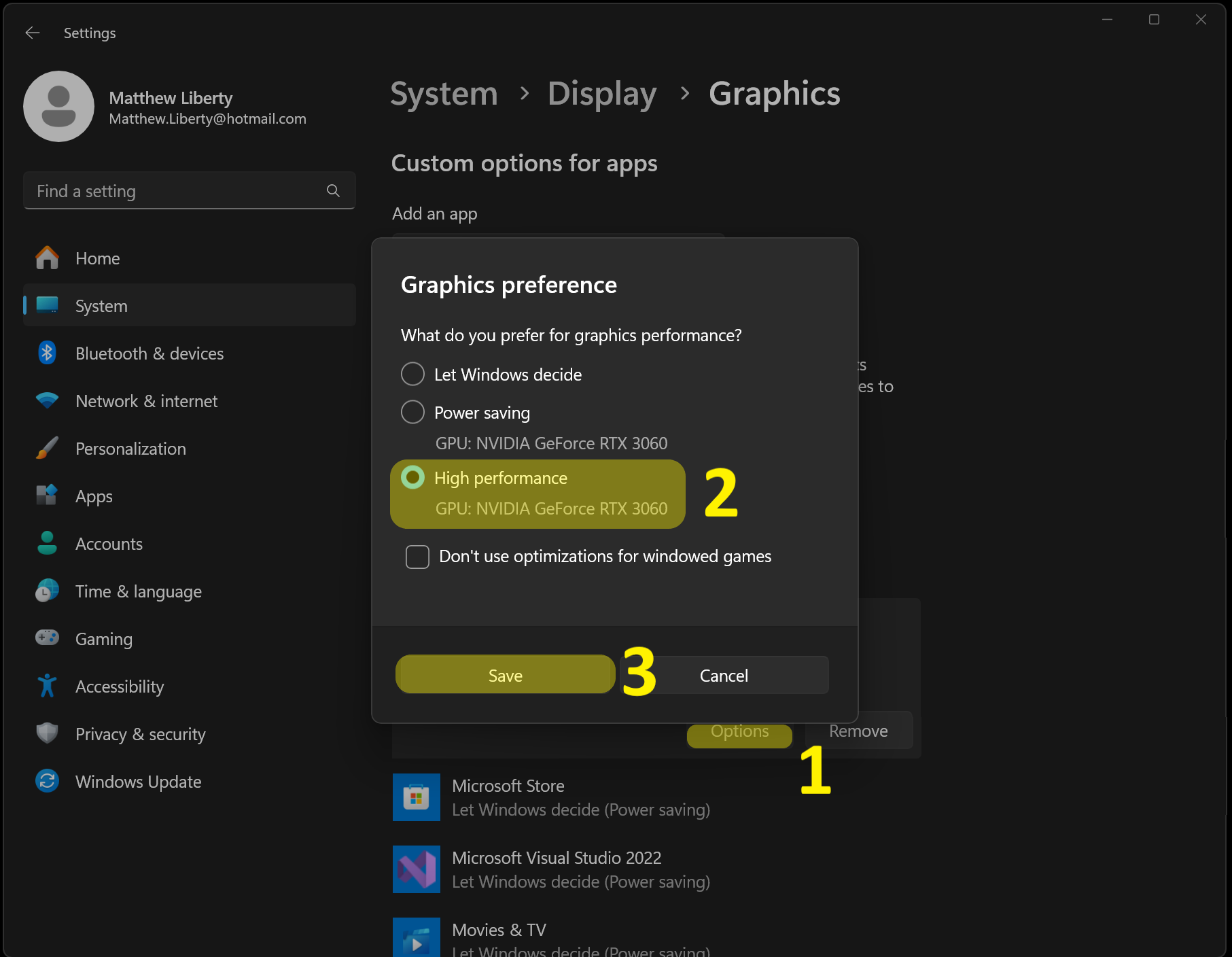
The next time you start the Joulescope UI, it will use the discrete graphics card.