
4. Meet the Joulescope UI#
When you start the Joulescope UI for the first time or after updates, it greets you with the Quick Start Guide. Please read through this and click OK to continue. You will see the Multimeter View.
Before diving into the views, let’s take a quick look at the window structure:
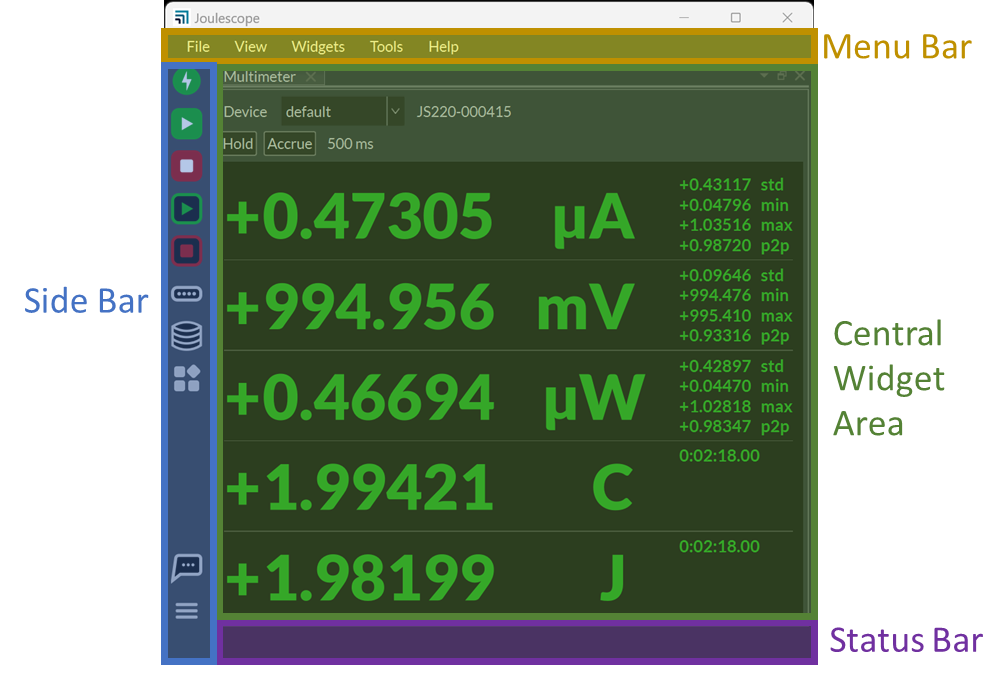
The Menu Bar allows quick access to commonly used features and settings:
Item |
Description |
|---|---|
File |
Open recordings and exit application. |
View |
Select the active view and manage (add, delete, reorder) views. |
Widgets |
Add a widget to the active view. |
Tools |
Additional tools. |
Help |
Get help and more information. |
The Side Bar allows quick access to commonly used features and settings:
Icon |
Definition |
Description |
|---|---|---|
|
Target power |
Toggle the power to target devices. |
|
Fuse engaged |
Clear engaged fuses. Turns red & blinks when any fuse engaged. |
|
Signal sample streaming |
Enable/disable sample streaming (pause waveform display) |
|
Signal sample recording |
Enable/disable sample stream recording. |
|
Statistics display |
Enable/disable statistics streaming (pause multimeter display) |
|
Statistics recording |
Enable/disable statistics stream recording. |
|
Device control |
Show device control settings for every connected instrument. |
|
Memory buffer settings |
Show memory buffering settings. |
|
Application settings |
Show all application settings. |
|
Get help |
Show a number of ways to get help with links. |
|
Additional settings and actions |
Additional settings and actions. |


The Status Bar shows current activity. For example, it shows the recording duration for any active recordings.
The Central Widget Area is where you can add, remove, and rearrange widgets. You can also undock widgets into other Windows.
When in doubt about a UI feature, hover the mouse over it, which often displays a Tooltip. Note that this only works when the Joulescope UI is also the active window. If you click on another application, you have to click on the Joulescope UI to make it active.
Want to configure something? Right-click (control-click on macOS) with the mouse to bring up a context-sensitive menu that varies based upon what you click.
4.1. Multimeter View#
The Multimeter View provides the present operating state at a glance.
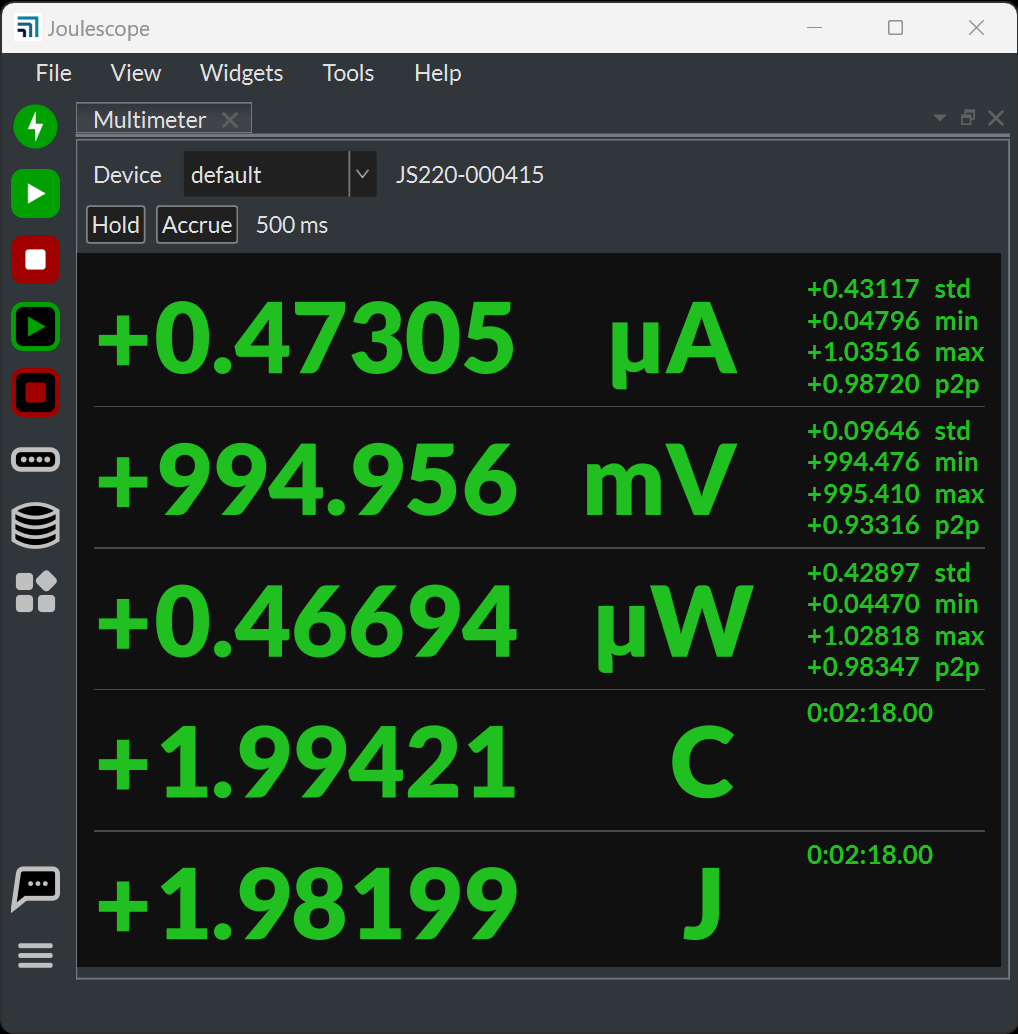
The multimeter view displays several quantities:
Electrical current in amperes (A)
Electrical voltage in volts (V)
Power in watts (W)
Charge in either coulombs (C) or amp-hours (Ah).
Energy in joules (J) or watt-hours (Wh).
This display, along with all other value displays in the Joulescope software, uses the SI standard prefixes for orders of magnitude:
Prefix |
Power |
Name |
|---|---|---|
G |
10⁹ |
giga- |
M |
10⁶ |
mega- |
k |
10³ |
kilo- |
m |
10⁻³ |
milli- |
µ |
10⁻⁶ |
micro- |
n |
10⁻⁹ |
nano- |
p |
10⁻¹² |
pico- |
The multimeter view updates every half second (0.5 seconds) by default. The software computes and displays the statistics over each half-second time window. The large numbers are the mean (also called average) value of that quantity over the window. The software also displays:
std: The standard deviation
min: The minimum value
max: The maximum value
p2p: The peak-to-peak value, which is equal to (max – min)
Note that charge and energy only display the time since the integration started since these other statistics are not meaningful.
Every update represents only the data recorded over the last half-second.
Press the Hold button to pause the display update. The charge and energy
accumulators will continue to run properly in the background. You can press
the Statistics Display  button, which
holds all widgets that display these statistics.
button, which
holds all widgets that display these statistics.
Press the Accumulate button to compute the statistics indefinitely until you press the button again. While Accumulate is active, the software extends the statistics to combine each new window without discarding results from previous windows.
4.2. Oscilloscope View#
The software includes an Oscilloscope View that displays waveforms over time. To enter this view, select View → Oscilloscope.
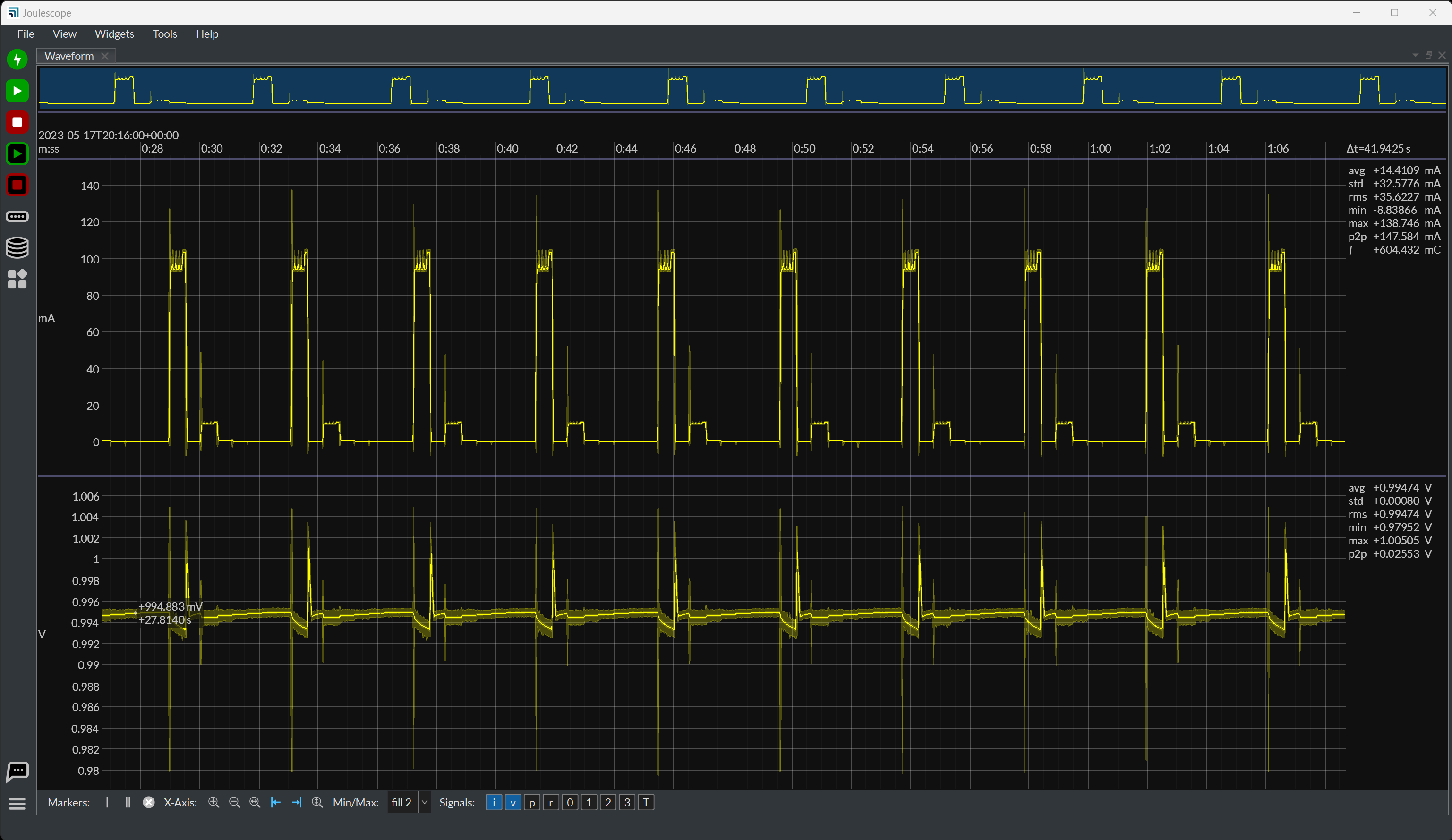
The Oscilloscope view consists of the Waveform Widget. The Waveform Widget has several regions moving top to bottom:
Waveform summary: shows the waveform to the full available time extents. The blue region highlights the time domain visible below.
x-axis: Displays the time in UTC. The first line shows the relative UTC offset. The next line shows the values relative to the offset.
Signal waveforms: The plot for each selected signal showing the signal value over time.
Control: Settings that affect the waveform display.
When you first select the Oscilloscope View with a connected Joulescope,
it will display the live streaming data from the instrument. You can click the
Play  button at the top left to pause the waveform
buffer. Press again to resume.
button at the top left to pause the waveform
buffer. Press again to resume.
You can easily navigate the collected data. Move the mouse over the plot of interest, and use the scroll wheel to zoom. Hold the left mouse button and drag the mouse cursor to pan. Alternatively, hold the shift key while using the mouse scroll wheel.
For the y-axis, the display automatically adjusts to display the available data. However, you can manually control the y-axis view range. Hold the Ctrl key (command ⌘ on macOS) and use the mouse wheel to zoom. Hold Ctrl, hold the left mouse button, and drag the mouse cursor to pan. Alternatively, hold Shift + Ctrl while using the mouse scroll wheel. To return the automatic view range behavior, right-click on the plot area and select Y-axis auto range.
Right-click on any region for more options. You can add annotations, including:
x-axis single markers: Display the average value and range for all samples represented by a pixel.
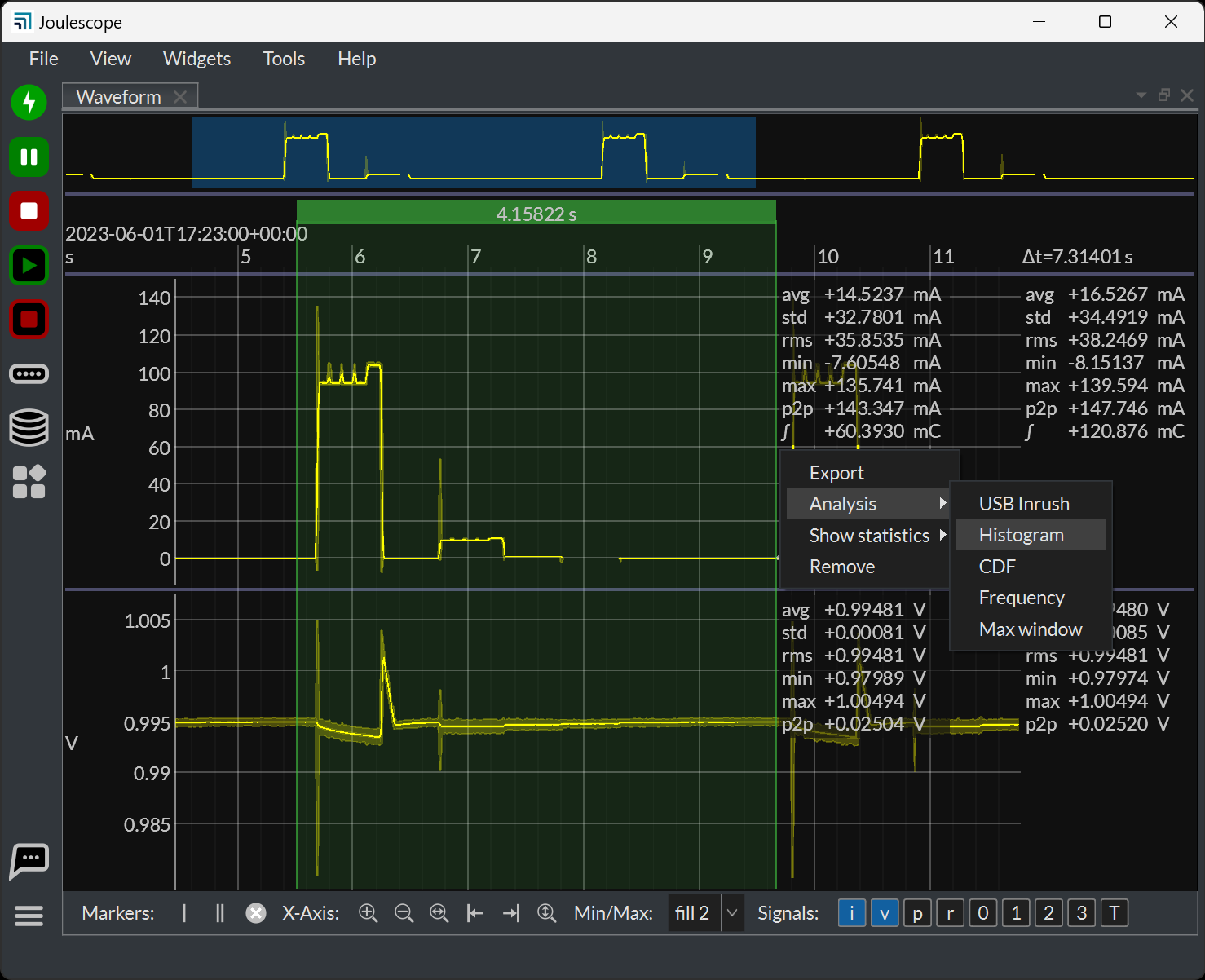
x-axis dual markers: Display the statistics over a region of interest. Right-click on the dual markers for additional analysis options.
y-axis single markers: Display the y-axis value
y-axis dual markers: Display the y-axis values and delta.
Text annotations: Add shapes and text to denote areas of interest.
The software computes statistics quantities over the full-time window shown in the present view for each waveform. The software displays the statistics on the right edge of the window. The statistical quantities are:
avg: The mean (also called average) value
std: The standard deviation
rms: The root-mean-square value
min: The minimum value
max: The maximum value
p2p: The peak-to-peak value (max – min)
∫: The integral over the time window
The control area contains a variety of buttons that affect the display. You can hover the mouse cursor over each to display a tooltip. The tooltip contains additional information for each option.
You can use x-axis dual markers to perform further analysis. Right-click one of the dual markers and select Analysis for the available options:
4.3. Energy and Charge#
Joulescopes measure current and voltage at 2,000,000 samples per second. It then multiplies current by voltage to compute power. Joulescopes then integrate current to compute charge and integrate power over time to compute energy. The Joulescope UI displays charge and energy in both the Multimeter View and Oscilloscope View. This value starts accumulating when the software starts. Use Tools → Clear Accumulators to reset them to zero at any time.
The energy value and charge value provide a simple measurement to observe changes, especially for software. You can baseline the performance of an operation by recording the measured energy or charge value. You can then make changes, repeat the test, and observe the new energy or charge value. The Oscilloscope View enables you to investigate in further detail.
4.4. Signal Management#
Instruments and recordings provide signals that can then be viewed or recorded. The Joulescope UI contains several features to manage signals.
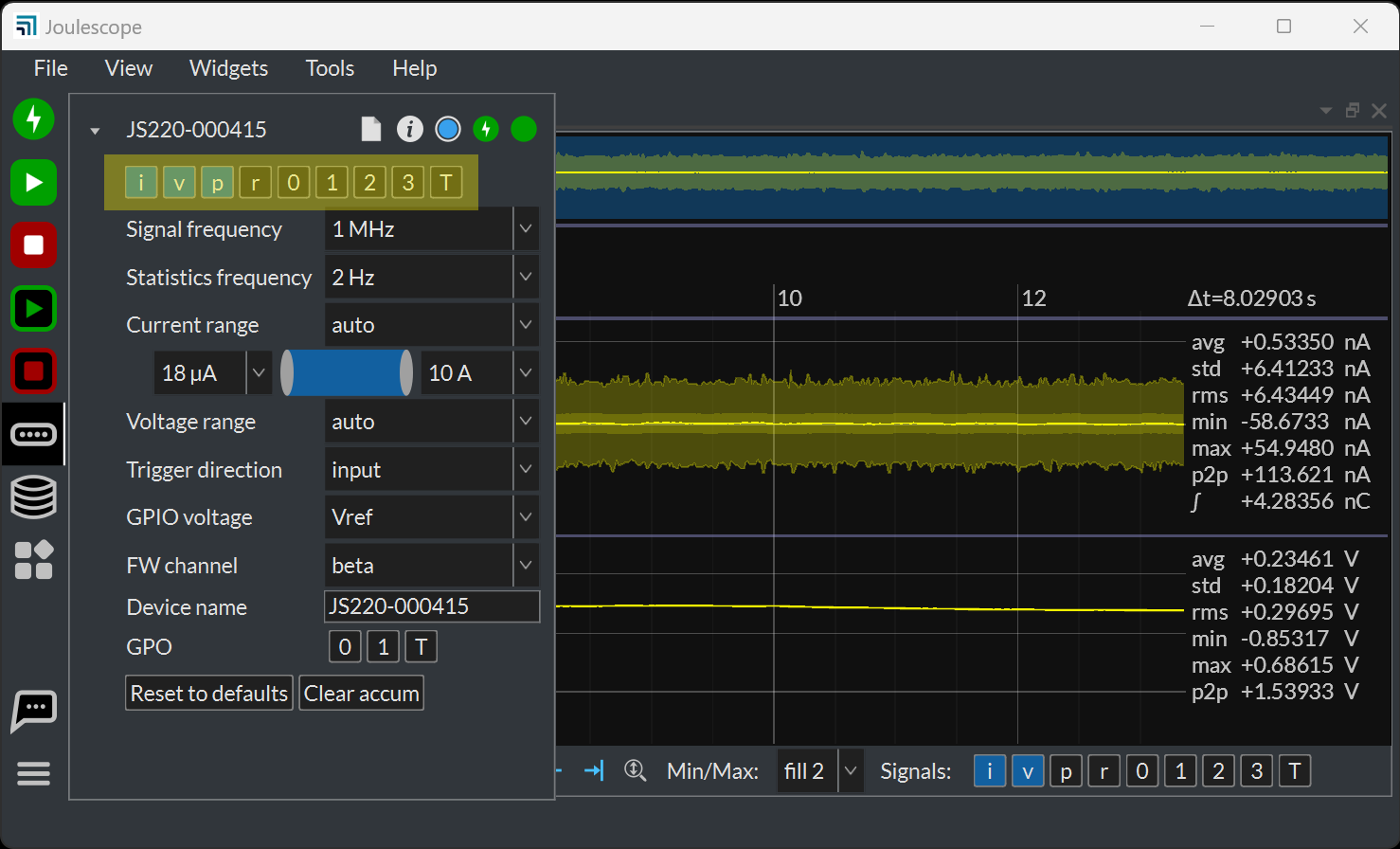
Each device allows signal customization. Click the Device Control icon on the Sidebar to manage the signals provided by each device:
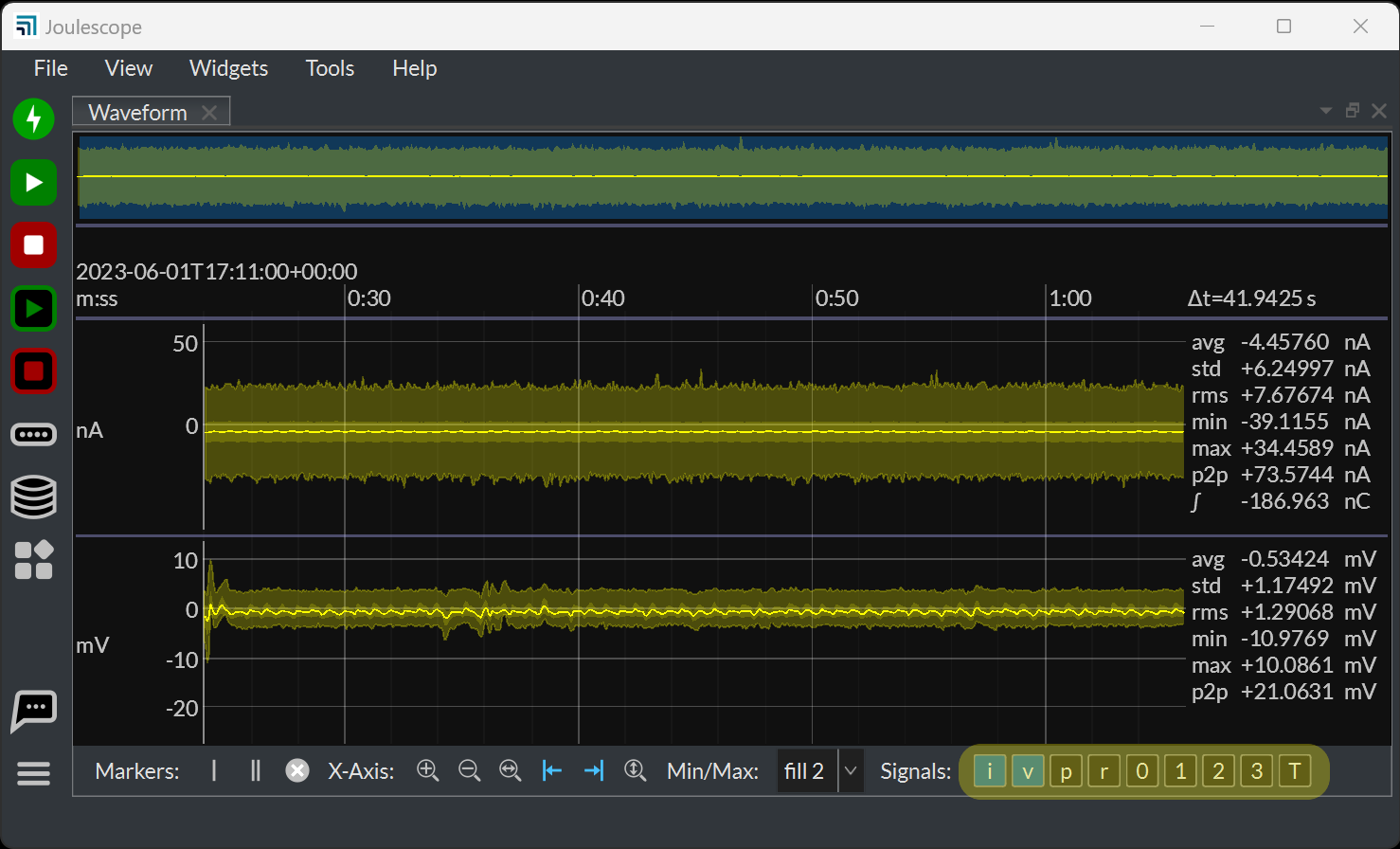
The Waveform Widget separately allows you to select which Signals it displays:
When you record a JLS file, the dialog allows you to select the signals to record:
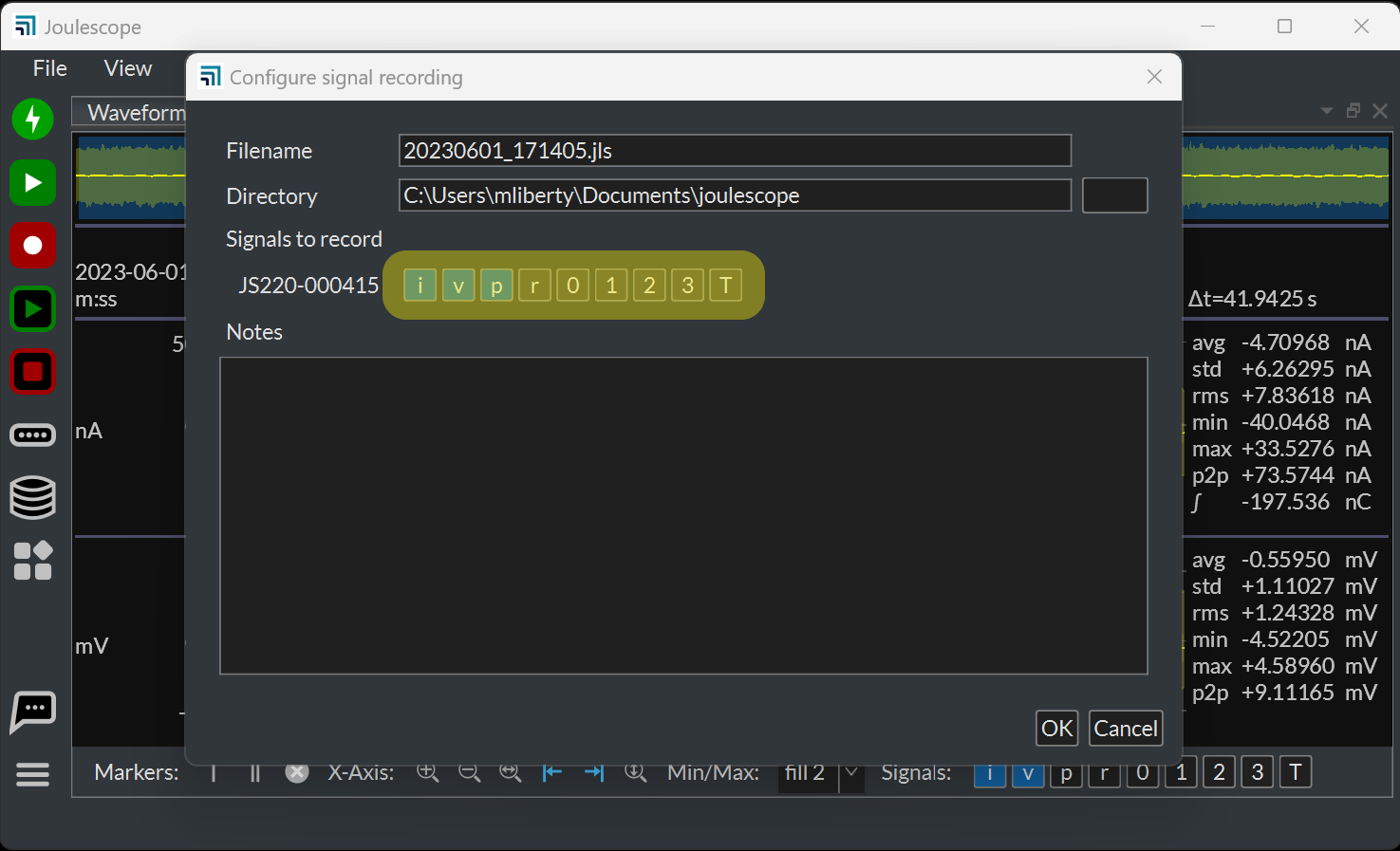
Recording more signals requires more storage space. To keep your storage space to a minimum, only select the signals you need.
4.5. Triggers#
Joulescope UI 1.1 and newer include a Trigger widget. The Trigger widget can detect start and stop conditions, and perform start and stop actions. The Trigger can run in either Single or Continuous mode. After configuring the desired operation, click the button at the top right to start the Trigger operation.
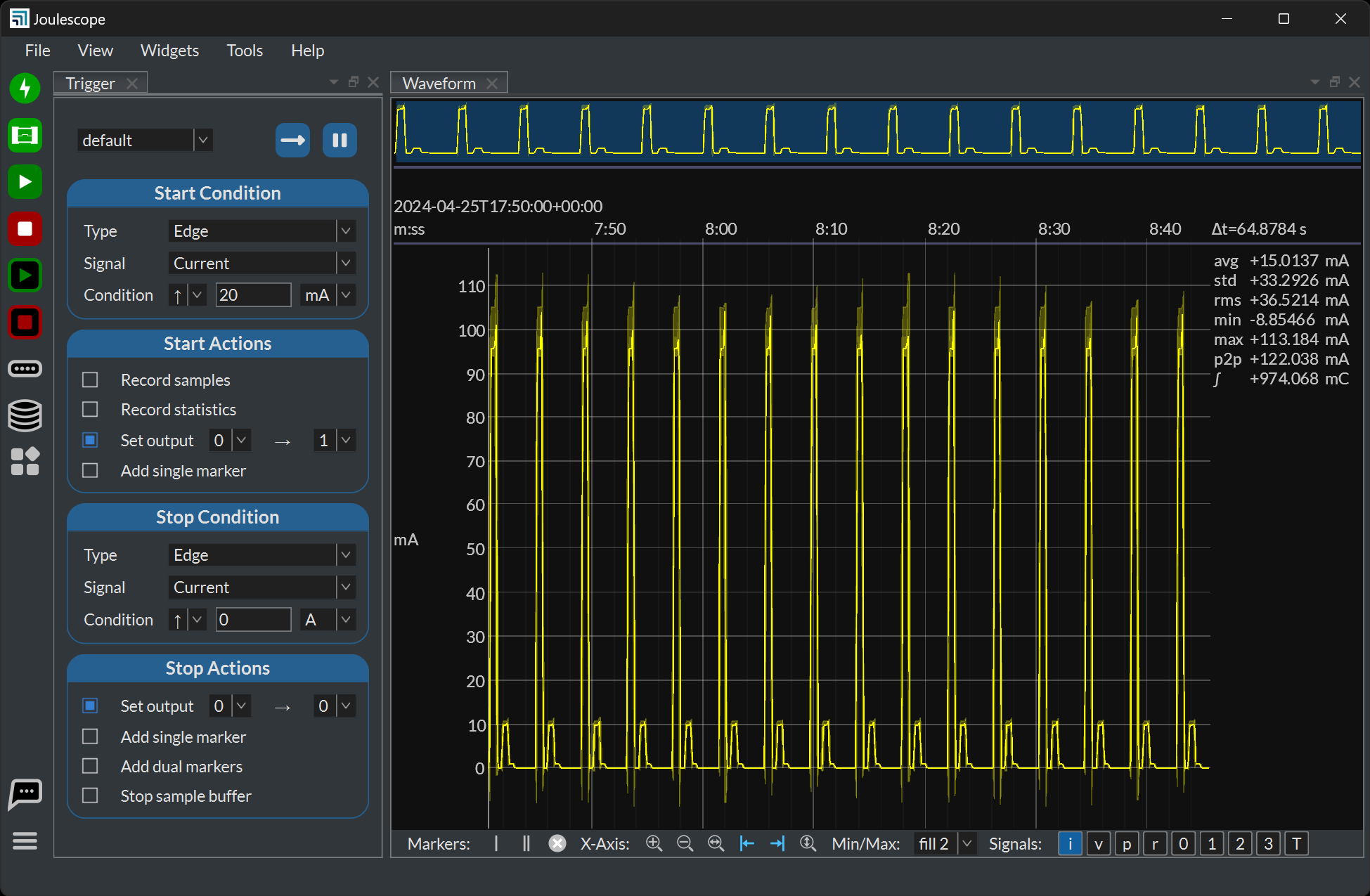
Joulescope UI 1.1 performs the trigger condition detection on the host. This detection includes communication latency from the Joulescope to the host computer. The Set output operation may have a significant delay (on the order of 100 milliseconds) between the actual condition and the output change. We do plan to move the condition detection to the JS220’s FPGA for significantly reduced latency.